

You now have an agent. You’ve built something great. Now let’s bring that agent to where you work, to where work actually happens, in Slack and email.
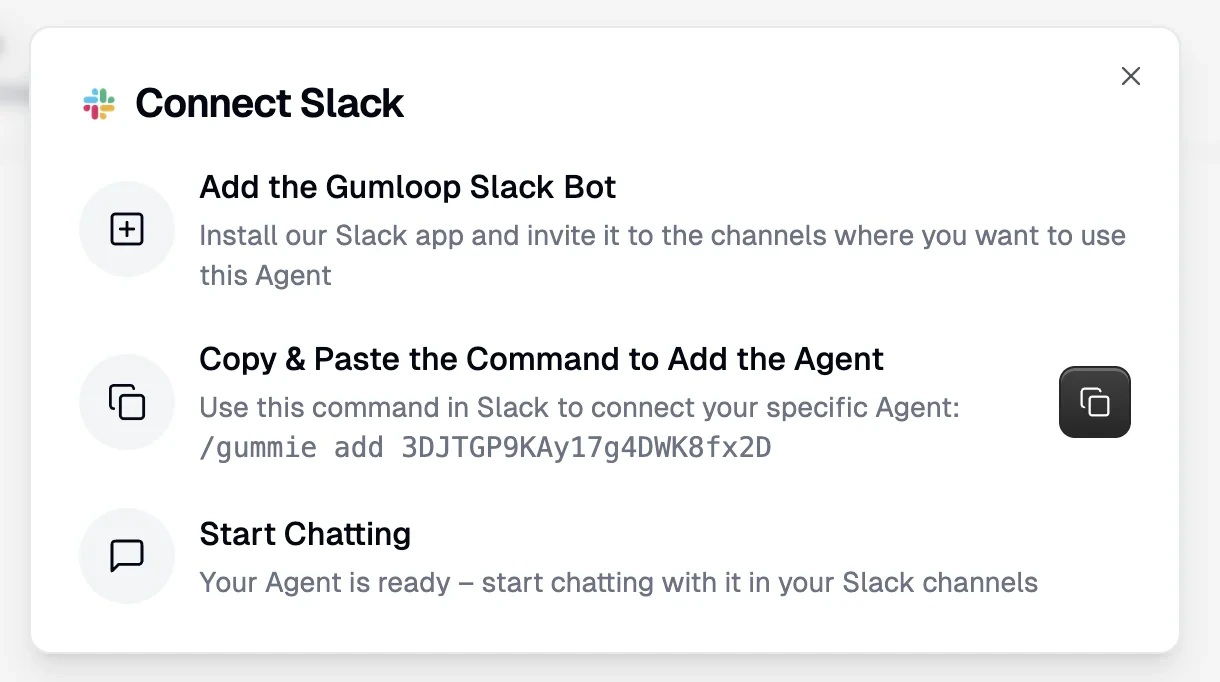
So first up, Slack. It’s where you work, and your colleagues are already all there. So to add our sales agent from the previous lesson to our sales channel, we’ll click on “Add to Slack” right here. I can pick the channel where this agent should live. For us, that’s going to be the sales channel.
Now @Gumloop in this channel is associated to this agent. And now I can ask @Gumloop “generate a sales report,” and the agent will start working, just like it would on the web.
If I want to continue the conversation with something like “highlight reps with under 500K in pipeline,” I can do that in the thread, and that’ll continue the conversation as if I’m chatting on the web.
And in Slack, colleagues can chime in. They can also start using this agent directly from this channel by tagging @Gumloop in the main channel.
You can also give your agent a specific tag, a specific handle, like @sales-helper. Which also means that once you give it a tag, you can have multiple agents in the same channel working alongside you.
Another place where work happens, hate it or love it, is email. You can bring your agent there too by giving it a Gumloop agent email address in Inbox. Any email sent to this address by you or your team, anyone with access to this agent, can have it do work for you.
So here I’ve got an inbound demo request from a potential customer, and I’ve forwarded this to my agent for it to start qualifying this lead for me. Just like when we @Gumloop in Slack, when we email our agent, we’re starting a thread in the web UI. It’s exactly like chatting with it.
So if I open up the agent, I can see it’s received the email and it’s working away on qualifying that lead. Once it’s done, it’ll respond to the original email.
Now you and your whole team can interact with your agents where you already work. Need to research that person emailing you? CC your agent or forward their information through email. Your analytics for your web traffic can be sent to Slack, where your team is already talking about it.
Add your agent where you’re already working and let it start doing work for you.
Bring Your Agent Where You Work
Deploy your agent to Slack and email so your whole team can use it without leaving the tools they’re already in.
Building an agent is step one. The real value comes when your team can use it without opening a new tab. Gumloop lets you deploy agents directly into Slack and email, the places where work actually happens.
Add Your Agent to Slack
Open your agent and click Add to Slack. Pick the channel where the agent should live. Once connected, anyone in that channel can tag @Gumloop to start a conversation.
The agent responds in a thread. Reply in the thread to continue the conversation, just like chatting on the web. Every new @Gumloop tag in the main channel starts a fresh conversation.
Colleagues can chime in on existing threads or start their own. Build the agent once, and your whole team uses it.
Custom Handles
You can give your agent a custom handle like @sales-helper instead of the default @Gumloop tag. This also means you can have multiple agents in the same channel, each with its own name.
Step-by-step guide for custom Slack apps
Add Your Agent to Email
Your agent can also have its own email address through Gumloop’s Inbox feature. Any email sent to that address starts a conversation with the agent, just like tagging it in Slack.
Forward a demo request for lead qualification. CC your agent on a thread to get a summary. Send it customer info and ask for research. When the agent finishes, it replies to the original email.
Where to Use Each
| Channel | Best for |
|---|---|
| Slack | Team collaboration. Everyone in the channel can use the agent and see each other’s conversations. |
| Forwarding inbound requests, getting research done, or triggering work from outside your team. | |
| Web | Direct interaction when you need the full Gumloop UI. |